If you're anything like me as a guitarist, you probably have a couple or several amps laying around collecting dust, that you have not used in forever because you've been enthralled with virtual amp sim plugins for years. Maybe you like Amplitube or Guitar Rig 5, or Shred or Neural DSP's Fortin NTS Suite, or whatever it is you use most. Well it may just be time to blow off the dust, spray some contact cleaner into the volume pots and plug that bad boy in again!
What I'm getting at is that when I decided to try reamping in Mixcraft 9, I was super excited to hear my old faithful Rocktron mAxe guitar preamp from the late 80's, doing it's thing on my newer tracks which I originally used sims on.
I had known about reamping for a while but never tried it because it seemed to me, to be a waste of time. I mean, why not just play the guitar live, right? After a few people started asking about the process and how they might do it in Mixcraft, I thought I'd give it a shot, and man am I glad I did. Hearing my old tone rocking my newer music is really cool to say the least.
Reliving the tone glory days isn't the only reason for reamping either. Let's say you're crunched for time to get some tracks recorded before your next platinum album release date, but you have to spend the weekend at your in-law's place, watching home movies to appease the wifey (Unless you enjoy that sort of thing). You can sneak away to the sewing room, wade through the cats, plug your guitar right into your laptop or tablet, record the parts dry and clean, and then transfer the recorded file to your computer daw once you return, then reamp it and it will be just like you are playing it right there on the spot! You can also run the outgoing reamp signal through anything you want. Maybe you've got a pedal board you use live and want the same tones and effects in your recordings, or any number of other reasons.
Before we get to the video below, I'll give you a short explanation of how it works in Mixcraft.
Record or load a clean guitar clip on any audio track
Add an Output Bus Track and set it up to push signal to the hardware channel of your choice
Take sip of beer
In the Mixcraft mixer, set your guitar track (the clean one from above) to output to the output track you created
Mic up the amp and plug the mic into your interface on whatever channel you want
Arm a track with the channel you plugged the mic into.
Hit record and the clean track will now play through your amp, which then gets recorded on the armed track
Way back in the stone-ages when I first started recording music, we didn't have plugins, or a daw, or running water ... :-)
We had hardware; A reel to reel tape machine, a huge mixing console with knobs the size of silver dollars, and any effects we wanted to use, we had to go out and buy, borrow or rent the actual rack mounted hardware and plug it in, in-line with the mixer. What a pain huh?
Luckily for all of us, now we have digital everything. Which means there's no shortage of effects, or daws, virtual mixers, virtual instruments, the list goes on and on. My point is that back then, we'd have given our right arm to have access to an endless supply of free equipment like we have now. The freebies would have been welcomed with open arms (and ears).
That being said, I thought I would compare a mastered commercially released mix which uses high dollar, paid plugins within Mixcraft Pro Studio 9, with the same mix but using freebie plugins in the same daw.
While there's no way I can explain the results to a degree of understanding that you would get from simply watching the video below, I do want to make a few points before we get to the video.
For the high dollar mix, I used plugins from Waves, FabFilter, Toontrack, PSP Audioware, Studio Devil, and Hofa. Check out the awesome Hofa IQ-Reverb to the left.
From Waves I used a compressor, and a couple different equalizers, the Scheps channel strip, along with one of their reverb plugins.
Tootrack provided Superior Drummer 3 which is actually on both mixes. I wanted all the instruments to sound exactly the same when dry, which meant not changing the virtual drums to something else. That would be like recording a different guitarist and expecting it to sound the same as the original.
PSP Audioware makes some cool plugins and I have used the PseudoStereo in my mixes for years now. I met the developers from PSP at NAMM years ago, where they gave me an NFR license for all their products, and I have used them ever since.
For the freebies, I simply looked around the net for some good ones that are easily available to anyone who looks.
The first one I would like to give mention to is the awesome little TSE BOD Bass pedal. What a little gem this is! When playing out live on stage, I use an Ampeg SVT4 Pro bass amp. It has a unique, extremely powerful sound that I duplicate with the Studio Devil VBA Pro. With the TSE BOD pedal along with some compression and EQ, I was able to get pretty close to that sound, for free!
I also used the Modern Compressor (2 instances) and the TB Parametric which comes with Mixcraft Pro Studio 9.
A few other awesome freebies made the mix too, as you'll see by grabbing a beer and watching the video below. Watch it, enjoy it, share it!
There are so many plugins available on the net, it's not even possible to begin thinking about trying to
list them all in any single location. People get plugins from major manufacturers such as Toontrack or Native Instruments, while others get plugins from free plugin collection sites or even budding developers themselves.
Over time, you might collect dozens or even hundreds of plugins (like yours truly), and become somewhat of an expert at how to install them and configure your daw of choice to find and use them.
Let's say you want to record yourself singing, but you're no "Whitney Houston", so you find some plugin called "instant whitney" and you download it.
VST 2 Plugins
IW might come with an installer which puts it in a pre-defined locations, or even allow you to choose the location. In this case, it's usually best to leave it to the default location, which is typically something common to most daws, Such as C:\Program Files\vst, or C:\Program Files\Steinberg\VSTPlugins.
Your daw will most likely check those directories each time you run it, and find your instant whitney on it's own.
If the installer wants to place the plugin in an odd location, there will be two things to consider.
Is this plugin written by a reputable company, or will it crash my daw, causing me to curse the daw developers for making crappy software?
Do I know how to tell my daw where this strange new location is so that it will load the plugin?
So considering both points above, you might either abandon your plans of installing instant whitney, or continue and plan to point your daw to it's location.
In a DAW such as Mixcraft, you can add directories in preferences, or simply drag and drop a plugin DLL file onto the interface.
VST3 Plugins
Unlike the VST2 standard, all VST3 plugins must install into a directory on your windows PC, here "C:\Program Files\Common Files\VST3".
So there is no changing the installer to point elsewhere and all this guess-work will be eliminated if you are only installing a vst3.
Something to keep in mind: If you installed Instant Whitney and it doesn't show up in your daw which only supports vst3, then IW may be vst2 only.
These days, most plugin manufacturers are going by way of the vst3 standard and will abandon vst2 completely at some point.
That might panic you because you love some plugin made 26 years ago and the manufacturer retired into the mobile yogurt stand business.But I assure you, it's a good thing. Chances are your yogurt dealer's plugin isn't going to play nice with newer daws anyway, so eliminating it from possible daw support trouble tickets in the future, will save us all time and money.
No Installer/Zip File
In some cases, Instant Whitney might come without an installer, and could be zipped up in a zip folder along with other files like config or resource files. In that case, you simply unzip the file, and then place the newly unzipped folder, into the vst folder such as C:\Program Files\vst, or C:\Program Files\Steinberg\VSTPlugins.
If you do not know what a zip folder is, or how to unzip it, look it up, Chuck!
Plugin File Types
DLL/VST2 - Windows and some other OS.
VST3 - Windows and some other OS.
RTAS - Pro Tools 10 and earlier only.
AAX - Pro Tools 10 and later only.
AU - Mac OS.
DirectX - Older proprietary Windows type. Support being dropped by many daws.
My Favorite Plugins
To close out this blog entry, I thought it would be fun to list off a few of my go-to fav plugins that you might want to try!
Fabfilter - Everything these guys make is just phenomenal! I use their Pro-R, Pro-C2 and Pro-MB in almost every project.
Toontrack - I am a faithful Superior Drummer 3 user. Here in my studio, I use it for everything from live drummers, drum sound replacement, to simply mousing in notes.
Native Instruments - You can't argue with Kontakt! So many libraries made by third party developers, an endless supply of studio grade awesomeness!
S-Gear - The most metal sounding guitar amp sim in my library.
Here's the scenario; You love to sing in the shower, the car, in your room when you think nobody is watching (they probably are). It's fun, it brings out emotion, it's a great pass-time, etc. The problem is, well... you suck and cause dogs and humans to avoid you. Am I hitting close to home on this yet?
This is what used to separate the nationals from the basement bands and created rock Gods. However, the time of the rock God has passed because digital audio and it's editing tools have evened the playing field. Yes, you too can sound awesome when you record yourself singing stayin' Alive for your next videoke upload.
As hard as I fought the urge to use pitch correction plugins when mixing my audio, I ended up using it here and there and now I cannot seem to mix without it as far as any modern sounding mix would require.
Before we get into the comparisons, I want to stress that "Auto-Tune" is a pitch correction product. Others are also pitch correction products. Auto-tune does not mean pitch correction. It's like calling all soda's "coke" or all motorcycles Harley Davidson. It's simply incorrect.
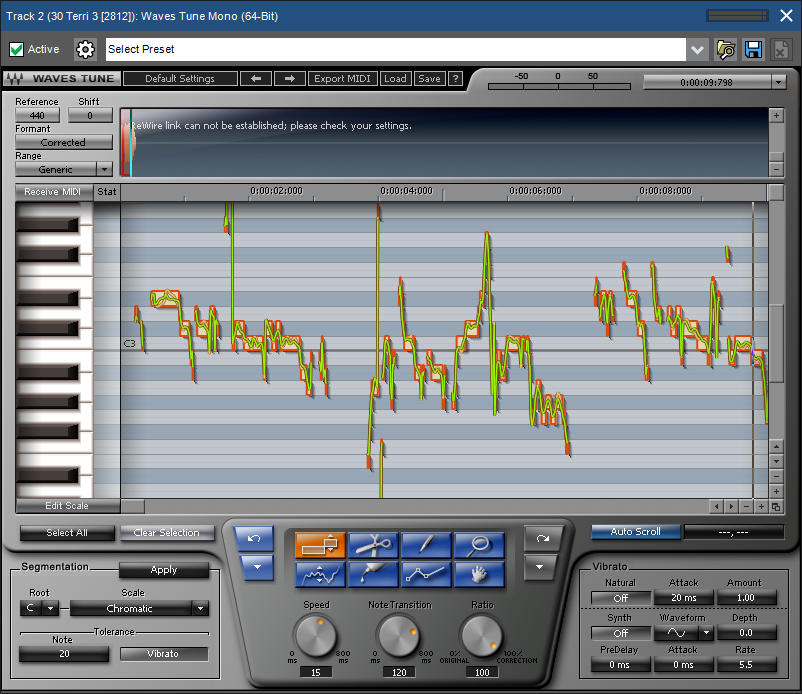
For this comparison I'll be using six well known pitch correction plugins. Auto-Tune 8, Izotope Nectar 2 Pitch Editor, Melodyne, Waves Tune, Gsnap, Auto-Tune EFX 3.
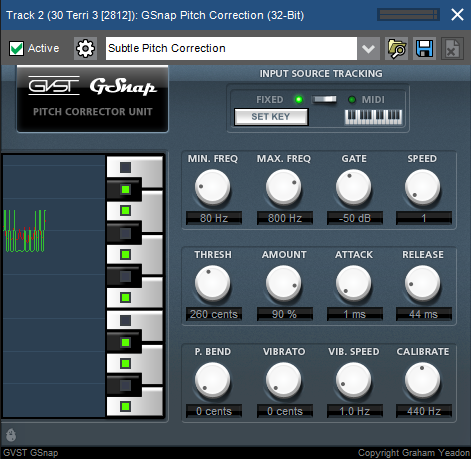
Lets start with the smallest and least capable plugin, which is Gsnap. It's free and also comes pre-installed with Mixcraft.
You won't be manually editing a vocal recording in this one, it's more of a real time pitch correction utility. The one thing it's very good at is the whole T-Pain/Cher overly ridiculous pitch changing trick. Just pull up it's preset called "Less subtle pitch correction" and set your key (unless you are rapping in which key is not a thing).
There's no graph mode for this one and it has just a few basic settings to tweak. For free, it's a useful tool if you are looking for that T-Pain effect explained above.
You can also find Gsnap for free download at the usual vst sites like KVR.
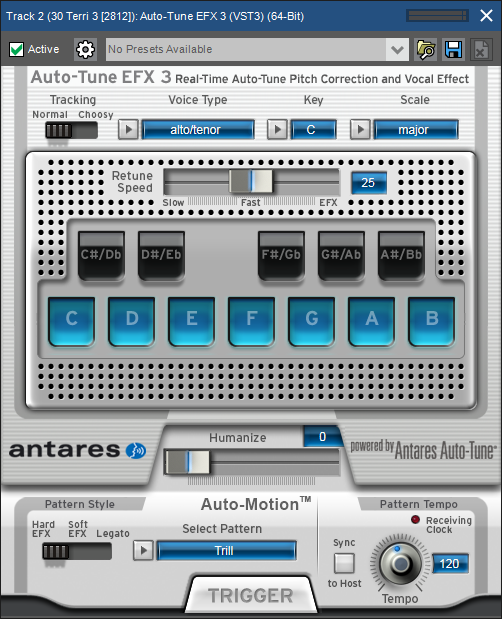
Auto-Tune EFX 3 is a sort of live version of Auto-Tune which is the most similar to the above Gsnap. Which is why I am reviewing it next in this list.
It's best used for following a vocal track or live vocal and fixing it on the fly. The trick is to tweak the settings so it doesn't sound obvious. Once of the features it has over Gsnap is the corrected notes are lit up and displayed on the interface so you know exactly what it is doing to your otherwise Grammy worthy vocal track.
Auto-Tune EFX 3 allows you to select the vocal type (Baritone, Alto, Soprano), the key, scale and a few other functions like humanize.
If you've got a live situation that needs some real time pitch correction, I would look into this one.
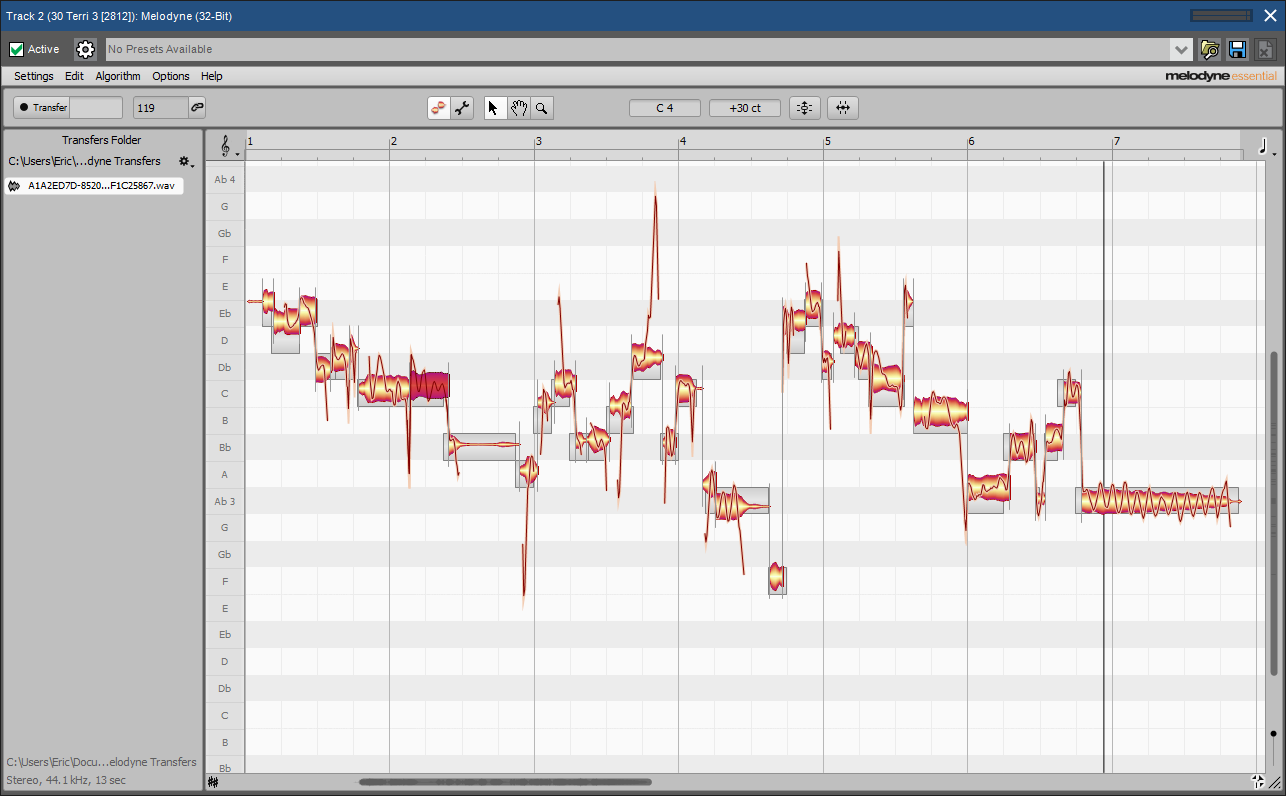
This is probably the most capable and easy to use product in the list. Keep in mind that the "essential" version is a light version. If you want full bad-ass-ness you can get their Melodyne Studio which is going to cost you $700
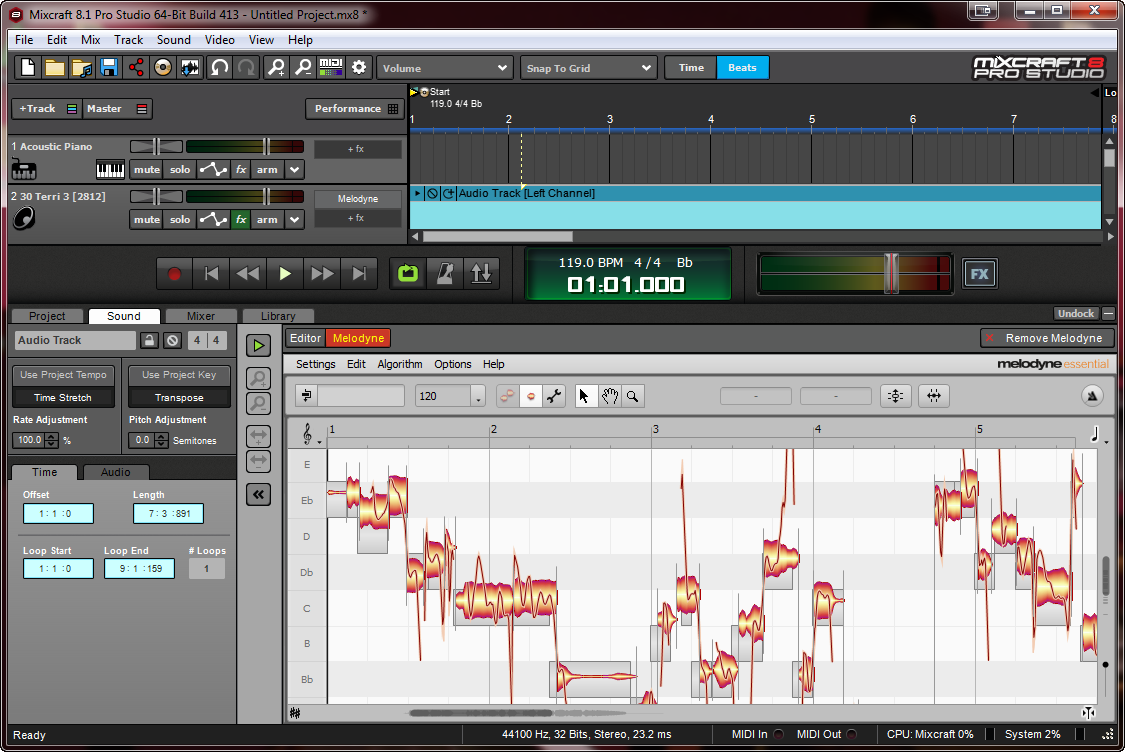
Like some others, you need to "transfer" your track audio to the plugin before working on it. Unless you have Mixcraft 8 or greater, where any version of Melodyne you have installed will show up in the sound editor tab, integrated right into the DAW! Here's a kick ass screenshot to transfer my excitement to you!
Melodyne has these functions called macros (sort of different than a macro I am used to using) where it will automatically change the pitch, vibrato and time of your "blobs" (wave form clumps) to where it thinks they should be. It's right about 8 times out of 10.
This plugin is not for real time use, you need to edit and change the audio within the plugin to hear changes on your next playback.
This one is similar in functionality to Melodyne in that it's a graph, non-real time, editor where you have to transfer the audio to it first.
After transferring, the first thing I noticed is the interface is way too small for me to do any serious editing. It is resizable via a handle at bottom right, but still doesn't quite get there. The other thing I didn't like is the lack of undo, but rather a "history" section showing previous changes to revert to. This is probably just a preference.
You can set vocal range, root note and scale, along with correction strength, speed and other functions. You can also manually drag the wave forms around.
It's a nice and capable plugin, no legit complaints.
From the famous Waves, comes a pitch correction plugin that is again similar to Melodyne. The transfer function is one step easier in that you do not have to do anything but play your track. The plugin will capture it automatically.
It's got all the usual functions such as setting the key, scale, speed, vibrato, along with many options for the vibrato for extra human-like sound.
There's one thing about this one that would keep me from using it regularly, and that is the small interface with no resize option. Which would be fine if you were just going to let the software do everything automatically, but if that were the case, wouldn't you opt to use one of the less expensive plugins like Auto-Tune EFX 3?
I hope this helps you to learn a little about each plugin so you can make a better decision when purchasing. I will say that I use Melodyne regularly because it seems the most capable to me, and because it is integrated into Mixcraft 8, and Auto-Tune EFX 3 fairly regularly.
So stop sucking at singing. Impress your girlfriend, wow your Mom. Get a pitch correction plugin and spare the world your out of key madness :-)
Oh no, who put that picture of the Fridays girl over there?
Of all the questions I get about plugins and how to use them, the elusive compressor takes the cake, hands down, no contest. So why is it that most people don't get it when it comes to compression? To contemplate that question, I looked back at myself when I first started mixing live in clubs when I was 19 (21 if the clubs ask). I didn't know what a compressor did either. Sooo, didn't use it. But as I got better over the years and watched others, I learned what it was supposed to do and how to get it to happen. I think one of the main reasons people don't understand compression is because it's mostly a transparent effect. I remember a guy back in the analog days who told me "If you can hear them working, it's too much". I don't completely agree with that now but it's pointing a noob in the right direction to say that, I suppose.
Now with digital everything these days, it's actually even easier. Some of these compression plugins have so many meters and controls that were missing in the old hardware days, that you kind of can't screw it up. Not to mention the ever popular failsafe called "presets".
The first thing I want to get to is explaining what some of the common functions are in compression tools.
Threshold: The threshold is your desired audio level. The more you turn it down, the more the plugin will compress in an effort to reduce the level of the audio to your chosen level/Threshold
FabFilter Pro-C2
Ratio: The ration is sort of how aggressive the compression will be. If you set the ratio to say 1:1, then the little compressor gnomes will sort of suggest nicely to the audio that it go back to the threshold line if it goes over. But if you set the ratio to 50:1 then the little gnome guys bring their swords and absolutely force the audio back to the threshold line.
Knee: This is how abrupt the transition will be between no compression and when it kicks in. A "hard knee" will be abrupt while a "soft knee" will be more subtle.
Attack: This will define how quickly the plugin reacts when the incoming audio raises above the chosen threshold level.
Release: Release sets how quickly the compression will fade off after it is triggered.
Makeup: Not the kind you wear on your face if you are in an 80's metal tribute, but the kind that brings the output level back up after the compression has brought it down.
Using compression on different types of instruments.
In the video below I show my personal technique for compression on a snare drum, a vocal, a bass guitar and a piano track. Just watching this video should give you a much better idea on how to use compression if you currently have no idea what you are doing.
Using compression on Sub-mixes and Mastering
An awesome multi-band mastering compressor is a must when mastering audio. In fact, it's the only thing I put on a master track other than a frequency analyzer to visualize where my levels are. Using a good compressor on a drum sub or vocal sub is also a must in my book.
The purpose of using a compressor on these types of tracks is slightly different from what we've learned above for individual instruments in that you are now using it to raise the levels and intensity while forcing the audio not to exceed the threshold. Aka "Punch".
Pentode Audio VTC-1
I use a compressor such as the Solid Bus Compressor or the VTC Vacuum Tube Compressor that ships with Mixcraft, for drum subs. Basically just gluing all the drum tracks together, leveling them and adding punch.
For mastering I use either the FabFilter Pro-MB or Yamaha's Final Master. Both are multiband compressors and both do an equally great job. The FabFilter is a bit more comprehensive though. You would use the multiband functionality to compress or intensify at different levels, each band.
Here's a video showing my technique for submix and mastering with Multiband compressors.
I hope I've helped you to understand compression a little better than you did when you started reading this. Load a small project and mess with compression plugins until you get a feel for what controls do what. Happy squashing!
Realistic drum plugins are some of my favorite types of audio software. Not that I dislike a human drummer, it's the production of an acoustic drum kit that throws the stick in my spokes. I've done many acoustic kits and it's completely possible for home studio users to produce professional drum tracks that way, but it takes a lot of time, high end microphones and tons of experience to know how to get the right sound.
Enter the virtual drum instrument for your daw of choice. The cool thing about using a vsti drum plugin is that you can create drum tracks in multiple ways.
Use the built in patterns to build a track
Download midi files from the net and import them into the daw
Use your mouse to input notes and adjust everything from velocity to swing.
Play a midi controller such as a keyboard or control surface
Use an E-Drum kit to play drums as you would on an acoustic kit, but you're getting the sounds from the vsti.
I have primarily used methods 3 and 5 above since I am not much of a keyboard player but I can mouse and I can drum.
What this gives me is near perfectly recorded and tuned drums to mix with. Not only that but perfect timing, none of that pesky human tempo straying ;-)
Here's a video of a song which a human drummer played an E-Kit using Superior Drummer 2 from Toontrack.
To my professional ear, there's nothing "fake" about that, it's a real drummer and real drums.
FYI: That entire recording above was done in Mixcraft by Acoustica
So if you are in the market for a great virtual drum instrument but don't know which is best for you and your budget, I've just so happened to sum up a few of the more popular ones below.
Here's the accompanying video if you want to watch it instead of, or before reading the reviews below.
BFD3 has nice sounding drums and a decent but a bit confusing interface. It doesn't show a complete drum kit for that familiar look, but that is not a necessity, just a convenience.
There are tons of drum kits, drum components to choose from to build your own kit, and effects so customizing is a big part of this plugin.
The mixer is functional but not as comprehensive as some of the others. It's got your basic mute, solo, etc. The mixer also allows you to send any instrument to an output track of your choice. Giving you the ability to mix each on a separate track in your daw.
Addictive Drums 2 is similar to BFD3 in that you can add/remove/alter kit components in a similar
fashion to create your custom drum kit. You can also use the presets or existing kits. The mixer is fairly basic and I did notice that though it does allow you to send each instrument to a separate output, it does NOT allow you to choose the output. It will put them in order as shown in it's mixer. Not a huge deal breaker but I like to have more control than that.
There are not as many effects available in this one as I would like to see for a complete package, but then again I never use them anyway. I like to use the effects that I am used to in my daw, which is why I send each drum out to it's own track.
The sound is great and you've got lots of customization options.
This one is probably the most well known and popular virtual drummers out there. It sounds great and comes with lots of customization options including expandability by purchasing additional drum kits and components. The mixer and effects are pretty basic but are plenty for a home studio user.
I really like the look and feel of this plugin interface, it makes me feel like I am rocking! This plugin has one of the coolest drum kits around called "Drumkit From Hell" which is quite popular with the metal crowd.
As with the other plugins, EZDrummer 2 comes with what they call "grooves" which are pre-recorded midi drum loops and sections. You can use these to build complete songs or use them as templates to alter in your daw. The Toontrack plugins have loads of these, which is a nice feature.
Studio Drummer runs inside the Kotakt Player, which is free. Kotakt is a host for other virtual instruments and it works great. Studio Drummer only has three available kits but you can tune the drums, customize the ring, attack, decay and more. Each kit has multiple versions, such as a garage
kit, arena kit, etc.
The interface has that familiar look but is a bit more complex than a few others. The mixer is nice and has excellent effects such as compression, gate, reverb. Routing each drum to it's own track in the daw is possible but a little more complex than others. One feature this one has that others don't is that it allows you to change the midi mapping to match common formats, making it work with your controller more easily.
For me, this one sounds the best out of all I've used. I do like that large arena rock sound though, which might not be what you need, so check the others out as well.
MT Power Drums is one of the Internet's best kept secrets. It's a FREE drum instrument with multi-output capability and it sounds really good. It's only got one kit and you cannot change the way it
sounds, but for free waddaya want?
The mixer is basic with pan, level, solo and a compressor (sort of). You can assign outputs to any sub track in the daw as well.
It also comes with a library of grooves to build songs or use for starting points.
The nice looking interface and the fact that it is free, allow me to give this high marks.
The first thing I will tell you is that this one is my goto for most projects. The reasons are that it sounds awesome, is more comprehensive and more customizable than it's little brother EZDrummer 2)
I love the look of it and love working with the kit pieces as a familiar looking drum set. Switching
pieces is easier than it was in previous versions as well. Superior Drummer 3 will also load not only it's own add-on kits, but it will load any of the EZDrummer kits you might already have.
The mixer is very usable with lots of functionality, along with output track routing. There are loads of effects such as compression, reverb, gate, delay, filters and many more. They bill this plugin as a complete drum production studio, which it is. You literally do not have to do anything in your daw other than load it onto a track, if that is how you wish to use it. Personally, I use the daw for everything outside of assigning the kit components.
The same impressive array of grooves make this one great for non-drummers as well.
Look and feel: 10/10
Sound: 9/10
Tools and effects: 10/10
Mixer: 10/10
Ease of use: 8/10
Price: $209.00 - $419.00
I hope I've helped you make an informed decision on which of these is right for you.
It seems like only 4 minutes ago that some kid contacted me via fb complaining that Mixcraft and his other daw (Sonar) constantly crash. He wanted to know how in the hell these companies get away
with selling software that crashes; how can anyone possibly get any work done? Said kid has had it up to here (envision hand at forehead level) with Windows and the software that's made for it, he was going to buy a mac dammit!
So, anyone just above noob level want to tell us why said kid should chill out and read this article? Yes! Because the crashes are his fault, and Macs are not more stable than Windows based PC's.
Cue the Mac people - The hell you say!
Sorry Mackies, one of the main reason macs are perceived as being more stable is because they support much less in the 3rd party software realm than Windows does. What that means in a nutshell is that Macs typically don't let you install software that isn't written by apple specifically for the mac. Windows released it's code to developers so that anyone with developer knowledge can write and distribute software that will run on Windows. Leaving the decision to install, up to the user, not the OS manufacturer. While that is awesome in most ways, it also means that Bob the developer who writes shady code, can distribute his garbage too. It's Bob's software that causes the issues with Windows.
What about virus's, man? Macs don't get 'em!
Virus developers write their bugs for attention or financial gain.
So if you were about to write a virus to make some cash, would you write it to run on Windows which holds about 84% of the market share, or Mac which holds about 11%?
In short, there are virus's written to attack macs, but much less than Windows because Windows is the popular OS.
So, can your threat to switch to a mac, it isn't going to solve anything and you'll likely be frustrated with the lack of third party software you can get for it.
User related reasons your daw might have problems running on your computer.
Dear Eric, I found this site offering a billion free games in one easy to install flashy looking app. Should I seize the opportunity?
If you have to ask this, put your computer away, you shouldn't be using one.
If you are having to reinstall Windows every other week...you might be the problem. Re-registering all your software 10 times/year is not normal, you need to find the problem and correct it.
Stop clicking everything you see, banner ads can lead to bad places.
If you are about to do something on the computer that causes the angel and devil to pop up on your shoulders and argue about whether it's a good idea, it's not.
Did you know that malware and virus's are illegal? You'd never have guessed right? Since they are illegal, they like to hang out on illegal or questionable content websites, like torrent and other file sharing sites that host content that you are not entitled to download. Porn sites love to push garbage your way as well. Deep or dark web? Don't even think it.
Computer related reasons your daw might have problems running on your computer.
Low system specs
You've read the system requirements for your daw of choice and your computer squeaks by with a hair to spare, yet you still seem to have crashing issues, latency, skipping during playback.
If you are running a single or even dual core processor and minimal amount of RAM (Random Access Memory), then that is probably contributing to, if not causing the problems. Software system requirements are often showing the minimal. If you load heavy plugins or simply build large projects, you'll likely exhaust the computers available resources and get crashes and horrible playback.
Poorly written plugins, freebies from Bob the developer
We all love plugins for our daw, they make our recording software posses a never ending expandability property that keeps it fresh. I personally love to go grab a new graphic equalizer when needed, or a cool virtual drum kit for creating awesome drum tracks. However, I try to stay away from a lot of the lone wolf kind of freebies out there in Internet land. Even if the developer has no ill intent and doesn't try to include malware. There's still no guarantee that he/she has adhered to the VST standard 100%. So if this plugin (lets call it HandyDandyVocalizer) isn't playing by the vst rules, HandyDandyVocalizer may cause your daw to crash, or a track to play incorrectly, or render the mix with a blank track, or any number of undesirables.
There are website out there dedicated to providing downloads for the higher quality freebies, such as VST4Free and VSTPlanet, but you should still exercise caution and put the plugins on probation until they've performed to your expectations a few times.
Cracked Software (Illegal licensing)
If you are in the habit of stealing other peoples hard work and not caring about the health of your PC or other devices on your network? then you might have some illegally cracked software installed. Like plugins, office, photo apps or even your operating system. If this is the case and you are getting issues, then stand up, walk to the garage, get a hammer, hit yourself in the face with it.
Cracked software is almost certain to contain malware, virus's, spyware and more.
Are you thinking any clearer now? Good, moving on.
Outdated Software
Everything that is software needs to be kept updated. From configuring Windows update, to updating
your daw, plugins and hardware drivers. Most software will have a "check for updates" link or button in it's help section. Drivers for audio interfaces can be downloaded from the manufacturer's website. Same for video cards.
Remember, updates are released to fix issues!
Low System Resources, Free Some Up
Here's a quick way to increase your computers performance. Use MSCONFIG to stop software programs from starting when the computer is booted up. You'd be surprised at how many programs put themselves in startup when they don't need to be. Check out the following video on how to quickly get better performance.
Restricted Windows User Accounts
Personally, I always run my computers as administrator. Not AN administrator, but THE administrator. I'm techie enough that I can play with virus's and malware for entertainment, so always being logged in as administrator is not a problem for me.
That being said, if your Windows user account is not AN administrator then Windows is blocking functionality from you. Here's a list of common issues I see with peoples computers who run as a "standard" or as I call it "restricted" user.
Cannot seem to register software products. You register, then the next time you run the software, it's back in trial mode or asking for registration code again.
Recording on a track results in a disappearing clip. This is because Windows isn't allowing your user account (running the daw) to write files to the hard drive.
Some plugins don't show up or run correctly
Your daw cannot access the Internet for things such as update checks, loop or sample downloads, uploading to social media sites.
Go into Windows user accounts under control panel, change your account type to administrator.
The Dreaded B.S.O.D.
The B.S.O.D. or Blue Screen Of Death is when your computer suddenly crashes and displays a blue screen full of text data. Error codes and other info here can help techies figure out the exact cause, but generally people have no idea what it all means. Here's a bit of useful info for you, the B.S.O.D. is 99% of time caused by hardware and/or the hardware driver.
With that in mind, the next time you are using your daw and when you hit record, your computer blue screens, don't go raging off to the daw developer website to tell them how crappy their software is.
It's highly likely that when the daw tried to use the audio device for recording, the device had an issue which caused the blue screen.
The solution is to keep the device driver up to date, unplug other usb or firewire connected devices and even try different ports because it could also be the usb controller on the motherboard that has the issue. In which case a bios update and/or motherboard driver update could be your fix.
Latency settings too low for the cpu and audio device driver to handle
If you are using your interface and daw to run a virtual amp for playing guitar through, or playing your midi controller keyboard to record virtual instruments like Kotakt, Pianissimo, or other
awesome plugin. You would likely want latency as close to zero as you can get it. Unfortunately, most devices can only achieve near zero latency, not zero. I've got a pretty high end system and I run about 7ms latency regularly. If I go any lower I start to have glitchy, skipping playback.
So if you are having issues like that, raise the latency/buffers on your device asio driver interface.
Cheapo Generic ASIO Driver with Internal Sound Cards
When you buy a computer, it has what is known as a sound card, installed inside. It's where your speakers are plugged in to. It can also accept input like a microphone or tape deck. you can use those inputs to record to your daw.
Sounds good, right?
A lot of people try using this setup for multi tracking, but end up realizing they need lower latency than the sound card can provide. They eventually end up downloading something called asio4all which is a generic driver which attempts to give low latency to devices that were not built for it.
Asio4all was an ok choice when trying desperately to get water out of a rock back before Microsoft came out with their newer "WaveRT" driver. However, these days there's no reason to try asio4all. You'll get the same or better performance from WaveRT and none of the buggy issues.
Side Note: If you've got an audio interface which tells you to use asio4all, take it back to the store, throw it at the sales guy who sold it to you and buy something else.
Hard Drives and Bad Sectors
Even when brand new out of the box, all disc hard drives have bad sectors. When Windows formats
the drive in preparation for installing the operating system, it sets those bad sectors aside and doesn't use them.
With time, other previously good sectors can go bad, particularly if you lose power often and the drive is shut down abruptly.
Although it's rare, a sector can go bad which contains parts of your daw software, or files it uses, etc. If that happens, it's best to reinstall the daw.
Bad RAM
Though not likely the culprit, it is possible for portions of your computers RAM to go bad. The computer might run fine most of the time, but have issues when you load heavy projects. This could indicate bad ram at a level above the usual 2GB it might take to run the computer for every day use.
Example: If your computer has 6GB of ram in total and uses 2GB just sitting there idle. Then you load a large project which uses 3.5GB of ram on it's own, your upper 1GB of ram might be faulty if this is when you start getting crashes.
Windows uses something called cpu throttling to idle down your processor cores that aren't in use. It's a part of the energy saving blah blah. I've found that this throttling can really cause problems with audio devices and even causing the B.S.O.D. for me by causing the audio device to become disconnected when I didn't touch the computer for a specified amount of time.
I wrote an extensive article for Acoustica on throttling and how to disable it. There's also a very comprehensive pdf there on tweaking your computer for performance.
In closing, just because you were playing an mp3 at the time of the crash doesn't mean windows media player sucks. If you were watching a recipe video for deep fried raccoon bites when you got a blue screen, don't call youtube/google and tell them about it. The problem is underlying and elsewhere.
Keep your computer in good health and make some music!
Over the past few years I've collected quite a few vst guitar amp sims, not to mention bass amp sims which nobody seems to discuss. Sometimes these plugins can get complex and difficult to understand for people who are trying to make the switch from analog to digital, let alone choose one.
Here you'll find pros and cons along with highlighted features and my personal opinion of each. The hope is that this will help you make a decision you'll be happy with for your own needs.
If you want to skip the reading and go straight to the comparison video, it's below.
Some notes before we get into it.
Just because something has a million options, add-ons, settings, doesn't mean you have to use them all.
Presets in these things are a great place to start, many people pick a favorite and make it their go-to guitar or bass tone.
A lot of times there are online communities of users for software like this and people will share their own presets, this is a great way to get an awesome sound without spending loads of time learning every in and out.
Many of these will come in multiple formats. vst, which is for windows daws, stand alone which allows you to to run the plugin without a host, rtas which is for pro tools, aax and others. So you can generally find a version that will work with whatever operating system you have. For this blog, I primarily use vst and vst3.
This is a very popular amp sim, and rightfully so. It's extremely versatile, has loads effect pedals, amp heads, cabinets, microphone types and combos, presets. Also, the "Custom Shop" makes it easy to grab new pedals and things for it if you want more functionality. The one thing that would stop me from purchasing it is that the original purchase doesn't include everything it's got to offer. Every pedal, head, cabinet you add on, costs you more money. It's like a never ending stream of things to buy, sort of like a real amp!
Bias Amp is something I hear the pros talk about all the time, well at least in positive grid videos :-) Personally I don't know anyone who uses it, but according to them, it is the pros choice for guitar amp modeling. Not to knock it because it has all the same pros that others have. Sounds great and authentic, versatile, expandable, lots of effects, heads, and things to play with. Great sounding presets too. The one thing I do not like about it is it is extremely heavy on the computer. Starting the interface lags and seems to take 10 times longer than any other plugin I have tested. An action as simple as turning a knob or changing presets has a lag about it that makes this plugin unusable for me. I suppose if I knew what preset I wanted every time i ran it, it wouldn't be as big of an issue, but I like to adjust and mess with software.
This one is pretty awesome and I know quite a few people who have/use it. I wasn't extremely impressed by earlier versions of Guitar Rig, but version 5 has nailed it. There are options galore, add-ons, heads, mics, cabinets, effects like distortion, delay, reverb, eq, filters, pitch shifting and more, but laid out clearly making it easy to learn and use. Scrolling through presets provides hours of fun and if you don't find one that you like, you weren't paying attention. Guitar Rig 5 loads quickly with no lag and is surely becoming one of my favorites.
I was pleasantly surprised when I found out that Peavey was releasing this amp sim plugin. It has some great preset tones and some celebrity named presets which I assume were created either by or to emulate said celeb. musician. This one is lower priced than some others and does include enough to get some great sounds with the initial purchase. It does however, use the online store for extra content, method. The nice thing about it is the content is inexpensive. For example, a pedal cost $3.99.
Revalver loads up extremely fast, no lag at all. Components are nicely drawn and sound great. Naturally the Peavey 5150 simulation is top notch ;-)
A customer introduced me to S-Gear a few years ago, he said it's the greatest metal guitar amp sim on earth. So I tried it and yeah it rocks, especially for the metal tones. I've also noticed that it's clean tone presets are better than most others. I definitely load up S-Gear when doing anything that calls for a metal crunchy, chunky tone. It's pretty limited on components though, there are a few heads, a few effect components like delay, reverb, etc. and then a load of presets. The low cost of this one puts it at the top of my recommendation list when talking to someone who's looking.
Shred comes with Mixcraft Recording Studio and Mixcraft Pro Studio, and was made by a company called Acme Bargig which has since went defunct. You can find shred for free from some archive download sites, but generally it's best to buy Mixcraft and be assured you get the latest version. The link above takes you to a download site which is hosting v1.06 at the time of this writing.
Shred sounds great, it's lightweight and has tons of presets to play with. It doesn't have as many components as some, which is the only con I can find.
I found this one in a forum, a guy had said how great it was so I tried it. I personally do not see anything great about this plugin. The only thing I can get it to do is make my bass louder. The eq seems to do nothing and beyond that, there's only a gain, a volume (which both seem to do the same thing) and a wet/dry mix.
This one is made by a reputable company called Softube, who make lots of other great products. The plugin looks kind of odd since it's more of a picture of an amplifier sitting on green carpet rather than an actual sim of what the amp looks like. This is kind of off-putting to me, I like to feel like like I am using a component, not looking at a picture of an amp on a floor. Outside of that, the sound is pretty good on a couple presets, and there are some cool things like the ability to move the microphone around, switch between three different cabinets and change eq settings. Not the most versatile amp I've used.
Now here's a great bass amp plugin! There's only one head and cabinet to use but the versatility of the two is amazing. Just like your physical bass rig, you can make this sound any way you want by adjusting equalizers (Parametric 3 band with sweeps, and 7 band graphic), compression, contour, low and high boost, gain and more. It's also got different microphones to use and position. I've used this for metal, country, funk and other types of music.
This is my go-to bass rig when recording. I've even modeled my physical bass amp sound after it. The tones you can get are versatile but it shines with gritty, heavily compressed, tough rock and metal tones. VBA Pro only has one head, no pictures of cabinets, no mics, no bells and no whistles. What it does have is sound and that is what's important, right? The 12 band graphic eq is very sensitive and works great for bass tones. It's got built in reverb and chorus for extra versatility. The compression it offers is very aggressive and works great for bass guitar.
Rating 9/10
Cost: $99.00
Pros:
Sound great
Very tough tones
Highly responsive
Inexpensive
Cons:
No pretty cabinets to look at ;-)
Conclusion
Watch the video at the top to hear what these plugins sound like.
I hope I've helped you to decide which is right for you, a lot of them have trial versions as well so don't forget to take advantage of that and try them for yourself.

 What I'm getting at is that when I decided to try reamping in Mixcraft 9, I was super excited to hear my old faithful Rocktron mAxe guitar preamp from the late 80's, doing it's thing on my newer tracks which I originally used sims on.